Logging On to Microsoft Windows


 This article covers Windows 7 and earlier only.
 Click here for the article on Signing In to Microsoft Windows 8.
Introduction
As you know, you have to log on to your Windows computer every time you start it up in the morning. You either type or click on your user name, and then type your password. This is how you identify yourself to your computer in a secure manner, so it can load your personalized settings and give you access to the programs and files you're allowed to use.
This article covers some basics about logging on to a computer running Microsoft Windows, and how to deal with common problems, both when logging on locally and through Remote Desktop. This article covers computers that are part of a properly-configured business network with at least one Windows Server. The descriptions and instructions here won't apply to computers on a serverless office network or at your home. With such computers, depending on how they're configured, logging on to your user account is a much simpler process.
For highly secure networks, your company may issue smart cards for logging on instead of assigning you a user name and password; instead of typing your name, you select your name after inserting your smart card, and type a numeric PIN instead of a password. Since most networks do not use smart cards, this article only covers standard user names and passwords. But the procedures, and typical problems you might have, are mostly the same.
How to Log On
To get started, press Ctrl+Alt+Delete to activate the logon screen. If you're not sure how to do this, click here (the link opens in a new window).
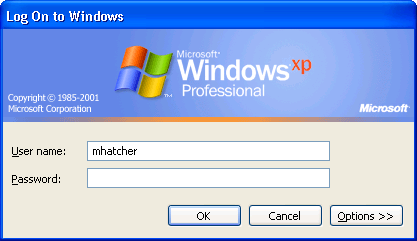
If you have Windows XP (or still run Windows 2000), your logon screen will look something like the picture below. If the user name is not yours, just move the cursor into the "User name" box, and replace what's there with your user name.
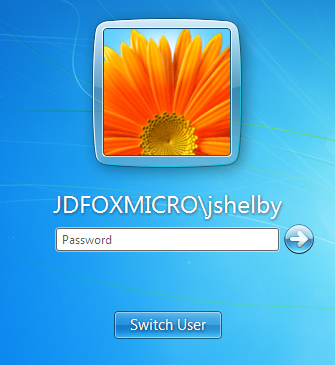
In Windows Vista and Windows 7, entering your user name is a bit more complicated. The main logon screen looks like this, where jshelby was the last user to log on:
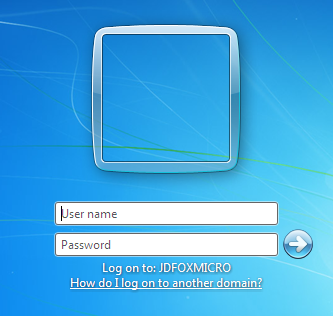
To enter a different user name, you first must click the Switch User button. That will bring up this screen:

Click Other User, and you will then see the screen below, which allows you to type in your user name as well as your password.
Windows Vista and Windows 7 allow multiple users to be logged on to the same computer at once (see the article on Logging off Windows for more information about this). If there is anyone logged on already, then when you hit Ctrl+Alt+Delete, you will see icons for all the users that are logged on, which might look something like this:

If you're logged on already, you can click on the icon for your account, enter your password, and get back in to your active logon session. If not, you can still click Other User and log on with another account.
By the way, the flower icon is the default image for all user accounts. You can change yours in the Control Panel.
Problems Logging On
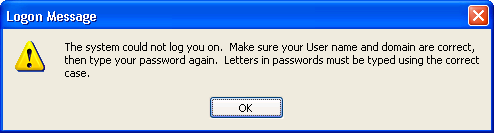
The most common problem you will have when logging on is that the user name or password are wrong. When this happens, you will see a message like one of the two below, depending on your version of Windows.
Windows 2000 and Windows XP:
Windows Vista and Windows 7:
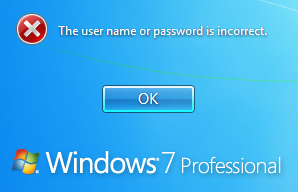
Windows is cagey on purpose about whether it's the user name or the password you got wrong. The idea is to make it harder for someone to guess a correct combination.
If you see a message that your account has been disabled or the logon server is unavailable, then your problem has nothing to do with your user name or password, and you should contact your system administrator for help.
Wrong Password
Many users think there is a problem with their account and call for help, but they are simply typing the password wrong. This is more likely to happen on a Monday (seriously!).
But, it is not always that the password happened to slip your mind. There are other causes, such as a sticky key on the keyboard or a "fat finger". Or, the Caps Lock might be enabled. Since your Windows password is case-sensitive, typing it with Caps Lock will mean you're typing it wrong, but you can't tell because you can't see what you're typing. This problem is less likely in current versions of Windows, which can detect Caps Lock and warn you if it is on.
A similar problem can occur if you use the number pad on the right side of your keyboard when you have digits in your password. If the Number Lock is not enabled, keypresses on the number pad won't be registered. It's not always easy to tell if the Number Lock is enabled; so, to avoid this problem, get in the habit of always using the number keys that run horizontally above the letters on your keyboard for typing passwords.
What's frustrating is that all of these problems would be avoided if Windows allowed you the option to see what you're typing when entering your password. But, conventional security practice forbids this, so secure versions of Windows never allowed it. (With the release of Windows 8 in late 2012, Microsoft has finally given us this option, to better balance usability with security.)
Sometimes it's not a typo or keyboard problem; you might simply have gotten your Windows password mixed up with the password for something else. Many users run various programs that they must log on to throughout the day. Examples include a specialized billing application, customer management software, web-based e-mail, or a password-protected QuickBooks file. If this sounds like your situation, consider whether you have absent-mindedly typed the password for something else when having problems logging on to Windows.
Finally, you might be typing the wrong password through no fault of your own, because an IT system administrator changed your password overnight. If an IT system administrator needs to log on to your computer using your account (for example, to test a new application or fix a problem particular to your user account), and you've already left for the day, he will change your password first to whatever he wants, then use that to log on as you. This is because there is no mechanism for anyone, even an administrator, to see what your password is. Of course, a good administrator will notify you in advance that he's going to change your password, instead of relying on your calling the Help Desk when you come in the next morning and find you can't log on. But, there are sloppy administrators out there.
Wrong User Name
In its default configuration, Windows will remember the last user that logged on, and display that user name automatically, so you only have to type your password. Windows was designed this way for convenience, but it can cause problems.
See, some people get so used to this that they never look. They come in to start their day, hit Ctrl+Alt+Delete, type their password, press Enter, and they're in. The problem is, if someone else with an account on the network logs on to the same computer overnight or over the weekend, that last person's name will now appear on the logon screen. When the regular user comes in and types his password without looking (sometimes even clicking the wrong name without noticing), he will get one of the two messages shown above, saying his user name or password is wrong.
So, to avoid this problem, get in the habit of making sure your user name is correct before you type your password.
Additional Notes
Keep in mind that none of the advice or instructions above will help if you don't know your user name and password. Some users don't know their password because they leave their computer logged on day after day. That's fine until the power goes out or your computer crashes and reboots. Similarly, a user who does log off and on regularly can go for years without ever typing his user name if no one else ever uses his computer. If this sounds familiar, you might find yourself at a loss trying to log back on after someone else logs on to your computer with another account.
If you're observant, you might have noticed a few references to a domain above. On virtually all networks, selecting the correct domain will not be an issue. However, if you'd like, click here to read the article about domains and their role in logging on.
Remote Desktop


You can use Remote Desktop to log on to your computer from another computer across your office network or over the Internet, if your IT system administrator has enabled the capability.
If you don't share your computer, Remote Desktop logons are easy. Even if you leave your user account logged on to your computer at the office, when you connect from home using Remote Desktop with the same logon account, the active logon session will simply switch to your remote computer, with everything open exactly as it appeared on the screen at the office. To anyone at the office who looks at your computer there, it will appear no one is logged on, providing you with privacy.
If you connect to a computer that you share with others, keep in mind that only one person can be actively logged on to the computer at a time, and how this is handled depends on the version of Windows running on the target computer. If this might apply to you, see the section below for the operating system your computer at the office is running.
Windows XP
If the shared computer runs Windows XP, and someone else is logged on already, he would have to close all programs and log off completely for you to connect. Because of this, when you first try to connect from another computer, you might see a message like this, explaining that you can't log on:
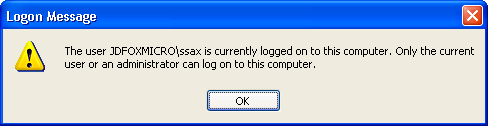
In that case, you might call the guy who's on your computer (whoever is logged in as ssax) and ask him to finish up and log off. But, if you have administrative privileges on the computer you're trying to connect to, you would see this message instead:
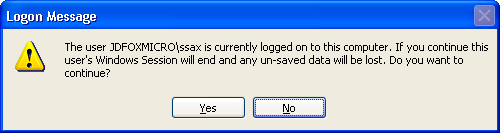
In this case, you can just click "Yes" and forcibly log off the user working on the shared computer (ssax). But, you could cause him to lose data if, for example, he has a spreadsheet open that he hasn't saved. He doesn't even get a warning message!
Whether you kick somebody off or not, once you have connected via Remote Desktop, the computer in your office will appear to be locked to anyone who walks up to it. No one else will be able to log on or see what you're doing.
Windows Vista and Windows 7
The latest versions of Windows handle this situation much better. Let's say your user name is dhansen. If you try to log on from home to a computer at your office running Windows Vista or Windows 7, and ssax is already using it, then this message will pop up on the computer at the office:
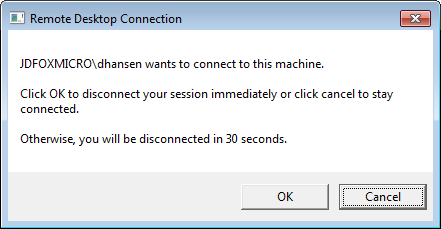
If he clicks OK or just isn't around, you will get in. But, either way, all his programs and files stay open in a separate suspended logon session, a big improvement over how Windows XP handled this. And, if he clicks Cancel on the prompt above, then your logon attempt will be blocked, an option he didn't even have with Windows XP.
Anyway, once you're logged on to your office computer from home, then to anyone sitting at the computer in the office, it will appear at first as if no one is logged on. If the guy you disconnected tries to log back on by pressing Ctrl+Alt+Delete, he will see the screen below. If he clicks on his icon (ssax), then you will get the exact same message he did when you tried to connect, this time asking you if he can connect. If you allow him to connect, he will regain access to his logon session; you will be disconnected, but your programs and files will remain open.

Read articles about related topics: