Microsoft Windows Logon and Domains


 This article covers Windows 7 and earlier only.
 Click here for the article on Microsoft Windows 8 Sign-in and Domains.
Introduction
On a Microsoft Windows based business network, a set of computers, shared folders, shared printers, and a list of authorized users and security polices which are all managed together is collectively called a Windows domain, an Active Directory domain, or, most commonly, just a domain.
When you log on to a Windows-based computer that's part of a domain, your computer will check your user name and password against the list of users stored on a type of server called a Domain Controller, also referred to as a logon server. The Domain Controller then grants you access to the shared folders and printers that your domain user account is authorized to use, regardless of which computer you logged on from.
All Windows-based computers also have what are called local user accounts. These are user names and passwords that are known only to your particular computer. You can manage these user accounts in your computer's Control Panel. If your computer is not part of a domain, these are the only accounts you can use to log on. When your computer is part of a domain, you can either log on with a domain account or using a local user account. While virtually no regular users on a domain network will ever need to log on with a local account, it's important to be aware that this is possible.
Anyway, on a computer that is a member of a domain, Windows shows what we will call your logon context at the initial logon screen. This specifies where the user account you're going to log on with is located. So, it will show either the name of a Windows domain, or the name of your computer (which would mean local user accounts). If you enter your user name and password, but the wrong context is specified, Windows will simply tell you that your user name or password is wrong. Windows only checks with the context specified to see if your user account is there and to validate your password. The only way to log on successfully, then, is to make sure the specified logon context is correct.
Most networks are set up under one domain, and never have problems with a user selecting the wrong logon context. Once each computer is properly joined to a single-domain network, the logon context is set to that domain, by default, for every user who tries to log on. As a result, many users on a stable business network never have problems related to selecting the correct domain.
That said, for users on a multiple-domain network, here is some information on how to deal with potential logon problems related to having the wrong logon context selected on the initial Windows logon screen.
Selecting Your Logon Context in Windows XP
If you have Windows XP on a business network (or still run Windows 2000), your logon screen will look something like the picture below. By default, the logon context is hidden until you click the Options button.
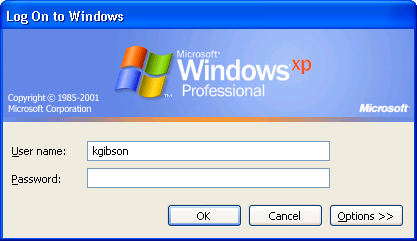
When you click Options, you'll see this:
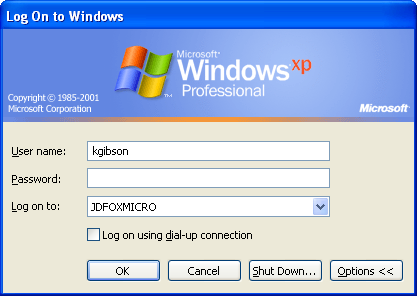
Notice there is a drop-down arrow, which you can click to see the list of all domains available on your network. One of the entries in the list will be the name of the computer you're on. Windows helpfully lets you know by putting "this computer" on the same line. Everything else in the list is a domain managed by a Domain Controller. You will never see the name of other computer workstations or servers here.
Below is an example of a computer named WORKSTATION4, which is on a network with two domains, named JDFOXMICRO and LAB.
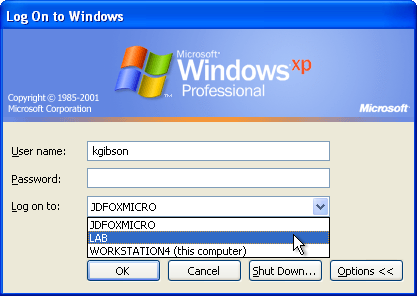
By default, Windows 2000 and Windows XP will be set to the logon context of the last user to log on. So if multiple users have accounts on separate domains and share one computer, each user will have to make sure to manually select the correct domain in the Log on to box.
In the example above, if the user kgibson only has an account on the LAB domain, he will have to select that in the Log on to box to be able to log on.
One last note about this verson of Windows: When you first click on the drop-down list to see the list of domains, you may get a message that says "Please wait while the domain list is created". When this appears, your computer starts communicating on the network to identify what domains are reachable. This should only take a few seconds. There is a quirk, though, where the message won't go away when it is finished, and you can sit there staring at your computer forever waiting for it to say it's done. To make the message go away, press Ctrl+Alt+Delete. If it is actually finished building the domain list, the message will disappear and you can click the drop-down list again and instantly see the available domains.
Selecting Your Logon Context in Windows Vista and Windows 7
Windows Vista and Windows 7 changed how domains are specified. There is no more drop-down list! The reasons why are complex, but essentially Microsoft made this change in the name of security.
In these newer versions of Windows, if you need to specify a different domain than the default, you must now manually type the domain name with your user name, using this syntax: DOMAIN \ USERNAME. Note the use of the backslash, which is usually above the Enter key on your keyboard. If the Log on to item is present and already shows the correct domain name, you can simply type your user name.
So, take a look at the most common screen you'll see when you want to log on, which shows the user who last logged on and prompts for the password:
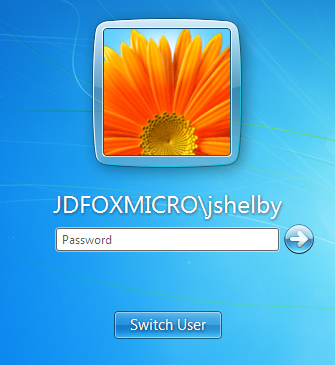
Notice the domain, JDFOXMICRO, is specified clearly here, but you can't edit the domain or the user name just by clicking on it. You must click Switch User and then Other User, just like you do to use a different account even on a single-domain network.
Only now you will notice that the logon prompt shows the domain underneath the password box, where it says Log on to. On this screen, Windows Vista and Windows 7 always default to the domain that the computer itself is a member of, regardless of who logged in last. In this case, the computer is a member of the JDFOXMICRO domain, so that domain still shows here.
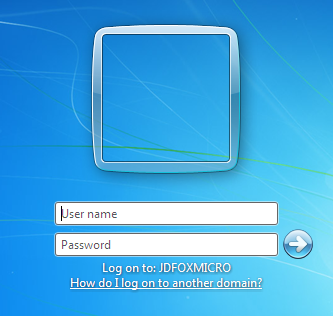
If you need to log on with an account in a different domain, type the domain name in the User name box, then a backslash, then your user name on that domain, as shown below. As soon as you hit the backslash key, Windows knows you're specifying a domain name, and the Log on to item below will change to show what you've typed.
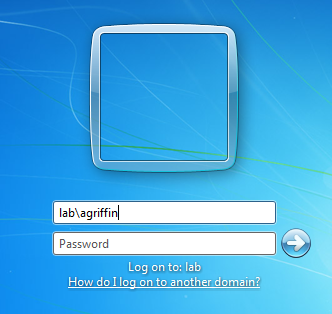
Notice that domain names and user names on Windows networks are not case-sensitive.
If you ever do find yourself having to log on to a domain user account using a computer in a different domain, you will need to type your domain name every time. You cannot simply click on it like you could in previous versions of Windows.
You'll notice there is a link labeled "How do I log on to another domain?" on the above screen. If you click this, you will get this window, which reveals that this particular computer's name is WORKSTATION2.
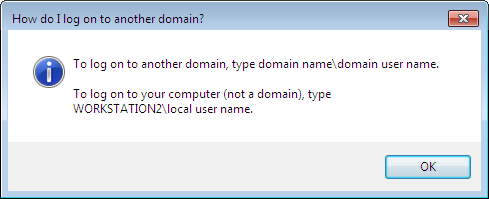
Microsoft's terminology in this window is imprecise and confusing. It incorrectly implies that you aren't logging on to the computer if you log on through another domain. The whole point of all the screens and functions covered so far in the article, though, is to log on to a computer, which is what you're doing whether you use a domain user account or a local user account. Microsoft also ignored the fact that you can just type a period as a substitute for the computer name. The message in the little box above should really say something like this:
To log on to this computer using an account from a domain other than the default domain, include the domain name in the user name box using this syntax: domain\username.
To log on to this computer using a local user account, precede your local user name with a period and backslash, like this: .\username.
There are more quirks you might discover on this particular logon screen, particularly related to local user accounts. But, these are beyond the scope of this article, which is meant to focus on logging on to the proper domain account on a standard business network.